Barcode Inventory System for a Small Business: Setup Steps
A barcode inventory system gives every item or shelf a code, puts that code on a label, reads it with a scanner and keeps the counts. A small business can set one up with free tools: Code 128 labels for your own codes, a phone or USB scanner, and counts exported to Excel.
By the Barcode.codes editorial teamReviewed
What a Barcode Inventory System Needs
A barcode inventory system has four parts: a code for each item or location, a label that carries it, a scanner that reads it and a record of the counts, which can be a spreadsheet.
| Part | What It Does | Free Tool on Barcode.codes |
|---|---|---|
| Item and location codes | One code per product, part, shelf or bin | Your own SKUs, or the product's UPC |
| Labels | Carry the code as a barcode | Inventory barcode generator, barcode label generator |
| Scanner | Reads the label into the count | A phone camera or a USB scanner in the inventory counter |
| Records | Hold the quantity of each code | The counter's Excel, CSV or JSON files |
A Spreadsheet or Inventory Software
Counting stock needs only the parts above: the counter adds up each code you scan and writes the counts to an Excel file. Inventory software is a separate purchase that this guide does not compare. A barcode only carries the code, so labels printed now can be read by any scanner and program that reads Code 128.
Choosing Codes and a Barcode Type
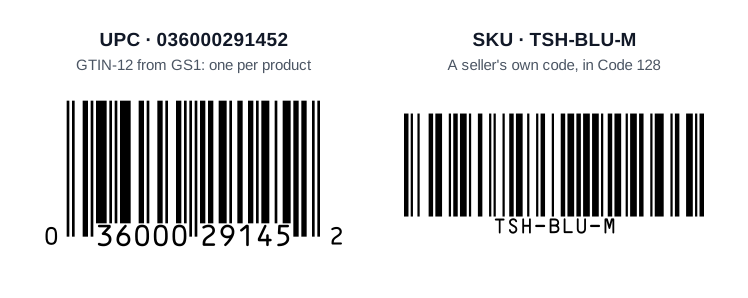
Scan the UPC or EAN that a product already has, and give your own items, shelves and bins internal codes printed as Code 128.
Products That Already Have a Barcode
A product with a UPC or EAN already carries a number you can count by: scanning it reads the product's GTIN. Every unit of the same product carries the same GTIN, so the count of one GTIN is the stock of that product.
Internal Codes for Your Own Items
For items without a barcode, choose a format such as INV- and six digits, or BIN-A-04 for a location, and print it as Code 128, which holds every ASCII character. Do not invent 12- or 13-digit numbers that look like UPCs or EANs: GS1 licenses those to companies, and a made-up one can match a real product.
GS1 does reserve numbers for use inside a company, such as 13-digit numbers that start with 04. GS1 limits them to the company or another restricted environment, so they stay off products you sell through retailers.
SKU vs UPC how to build your own SKUs and when a product needs a UPC instead.
Printing Inventory Barcode Labels
Make the codes in one run, print them on label sheets at full size and scan one test label before you label the stock.
The inventory barcode generator numbers your items in sequence, such as INV-000001 to INV-000500, and downloads the barcodes as files or a label sheet. The barcode label generator lays any list of codes out on Avery sheets, such as 5160 or L7160, or on a custom grid, as a vector PDF with a calibration page.
Print the PDF at 100%, not Fit to page, so every label lines up. The generators never shrink a barcode to fit a label; they say how much room it needs instead.
Inventory barcode generator numbers your items in sequence and draws them as Code 128 barcodes.
Barcode label generator puts a list of codes on Avery or custom label sheets as a PDF.
Scanning and Counting Stock
A phone camera or a USB barcode scanner reads the labels into the count; a USB scanner types the code and presses Enter, like a keyboard.
Counting With the Inventory Counter
- Inputs: the phone or laptop camera, photos of labels, or a USB or Bluetooth scanner that types into the page.
- Quantities: each scan adds one to the code's quantity, or a new row for each scan when you track serial numbers.
- Corrections: notes per code, undo, and separate counting sessions.
- Offline: after the first visit, the counter opens and counts without a connection.
- Storage: the counts stay in that browser on that device and are never uploaded; a JSON backup moves them to another device.
Barcode scanner to Excel the free inventory counter: scan, count and export to Excel.
Keeping the Counts in Excel
Export the count as an Excel file with one row per code and keep it as your stock record, or open it in the program you already use.
The .xlsx file has a column each for the code, its barcode type, the quantity, the note, the first and last scan and the input it came from. Codes are stored as text, so a code that starts with zeros keeps them. A CSV export holds the same columns.
Barcodes in the Spreadsheet Itself
To print barcodes from the sheet, the barcodes in Excel tool turns a column of codes into a Code 128 or Code 39 column set in a free barcode font, as an .xlsx file. Install the font on each computer that opens the file.
Barcodes in Excel a column of codes as an Excel file with the barcode column in a barcode font.
How to Start a Barcode Inventory System
Decide your codes, print and test the labels, count once to start, then count again whenever you need the stock level.
- List your items and locations, and decide a code format for those without a barcode.
- Make the barcodes in one run and print them on label sheets at 100%.
- Scan one test label with the phone or USB scanner you will use, then label the stock.
- Count everything once with the inventory counter and export the Excel file as your starting stock.
- Count again for each stocktake, and compare the new file with the last one.
Frequently Asked Questions
Do I Need GS1 Barcodes for Inventory?
Not for items that stay in your business: internal codes in Code 128 are enough. GS1 numbers such as UPCs are for products you sell through retailers and marketplaces that ask for them.
Can I Use My Phone as an Inventory Scanner?
Yes. The inventory counter reads barcodes with the phone's camera in the browser, with no app to install. After the first visit it also counts without a connection.
What Does a Barcode Inventory System Cost?
The codes, labels, scanning and counts on Barcode.codes cost nothing. You pay for the label sheets and, if you want one, a USB or Bluetooth scanner.
Where Are My Counts Stored?
In your browser on the device you count with; they are never uploaded. Export the Excel file for your records and a JSON backup to move the count to another device.
Sources
The numbering rules come from GS1; the rest describes how the site's tools work, checked by their tests. Retrieved on the dates shown.
GS1 General Specifications, Release 26.0, ratified January 2026 defines the GS1 identification keys, barcodes and Application Identifiers; the text names the sections used.
GS1 US: How to Get UPC Barcodes for Products describes one barcode per product variation, the single GS1 US GTIN and the GS1 Company Prefix, and their limits; checked October 9, 2026.
BWIPP symbology references (Code 128, Code 39, Data Matrix, PDF417, Aztec Code, MaxiCode) documents the character sets, sizes and standards of the encoder the generator uses.
Related Barcode Guides
- SKU vs UPC
Your own stock codes against the UPC on a product.
- Code 128 vs Code 39
Which barcode suits your internal labels.
- Barcode for Amazon products
The GTIN Amazon needs and its FBA labels.
- What is a GTIN?
GTIN-8, -12, -13 and -14 and their barcodes.