Free Barcode Generator Online
Create a barcode online: pick one of 23 types, from QR Code and UPC-A to GS1-128 and Data Matrix, and watch the live preview. Set the DPI and size for your printer, add label text or a QR logo, then download SVG, PNG, PDF or EPS. Each code is read back by a decoder. Nothing you type is uploaded.
10.9 × 10.9 mm at 300 DPI
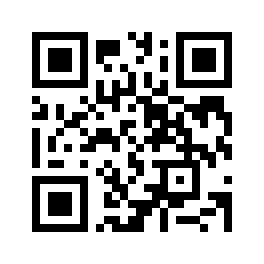
Scaled to fit. Actual size shows the print size on screen.
Print simulationNew
Shows how a worn print looks and tests it with the decoder.
Blue bars: the start, center and end guard patterns. Downloads stay in your chosen colors.
- Type
- QR Code · 2D
- Print size
- 10.9 × 10.9 mm
- Raster
- 132 × 132 px
- Symbol
- version 2, 25 × 25
- GS1 prefix
- Read back
Download
Vector drawing, 10.9 × 10.9 mm. Design and label programs place it at its print size.
More export optionsNewTest sheet · size set · embed code
Print test sheet (PDF)
The code at 80%, 100% and 150% with 100 mm and 4 in rulers. Print it at actual size and scan each copy before printing many.
Size set (ZIP)
Magnification
DPI
Embed code
How to Create a Barcode Online
Choose a type, enter your data, adjust the print settings and download the file.
- Choose the barcode type from the Symbology menu. The data field fills with a valid example.
- Replace the example with your number or text. If the data does not fit the type, the panel says why and draws nothing.
- Set the output DPI and the X-dimension, the width of the narrowest bar, for your printer, and add label text, a border or, for a QR code, a logo.
- Check that the preview says the decoder reads the exact data, then choose SVG, PNG, WebP, JPEG, PDF or EPS and press Download.
- Print the test sheet from More export options at actual size and scan each copy before printing many.
Barcode Types You Can Generate
The generator makes 23 barcode types in four groups. Each type checks its own input rules, listed below.
Retail and Book Barcodes
UPC-A: 11 or 12 digits; the check digit is added.
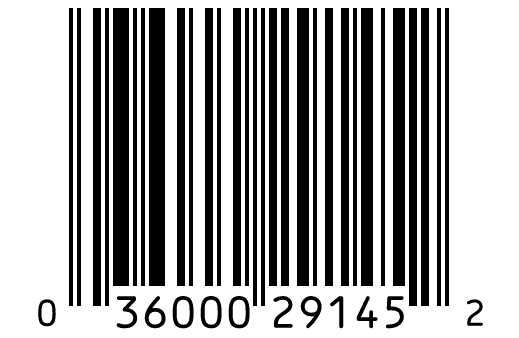
UPC-E: 7 or 8 digits starting with 0 or 1.
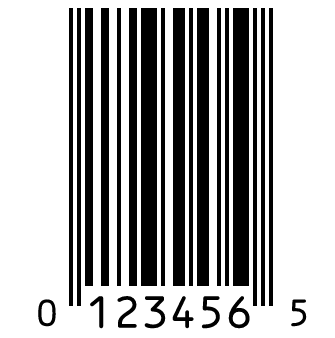
EAN-13: 12 or 13 digits; the check digit is added.
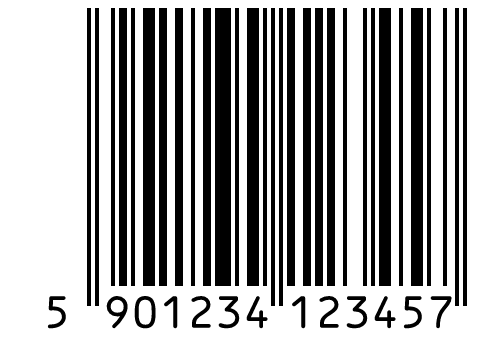
EAN-8: 7 or 8 digits.
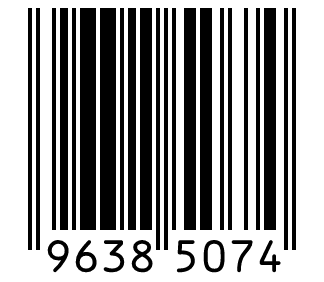
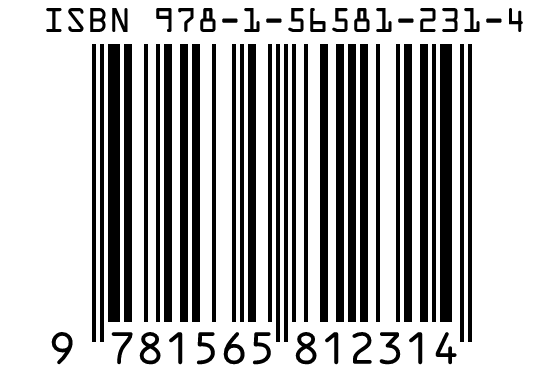
ISBN: an ISBN-13 or ISBN-10, with or without hyphens and with the check digit optional; the hyphenated ISBN is printed above the bars.
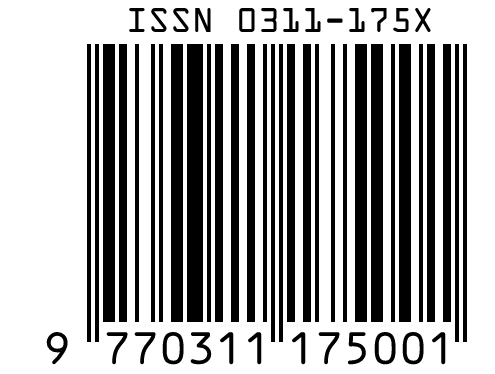
ISSN: the ISSN followed by a 2-digit issue variant, such as 0311-175X 00.
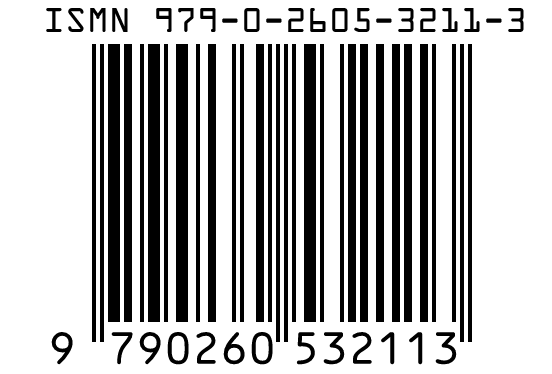
ISMN: an ISMN with its hyphens, in the 979-0 or the older M- form.
GS1 and Shipping Barcodes
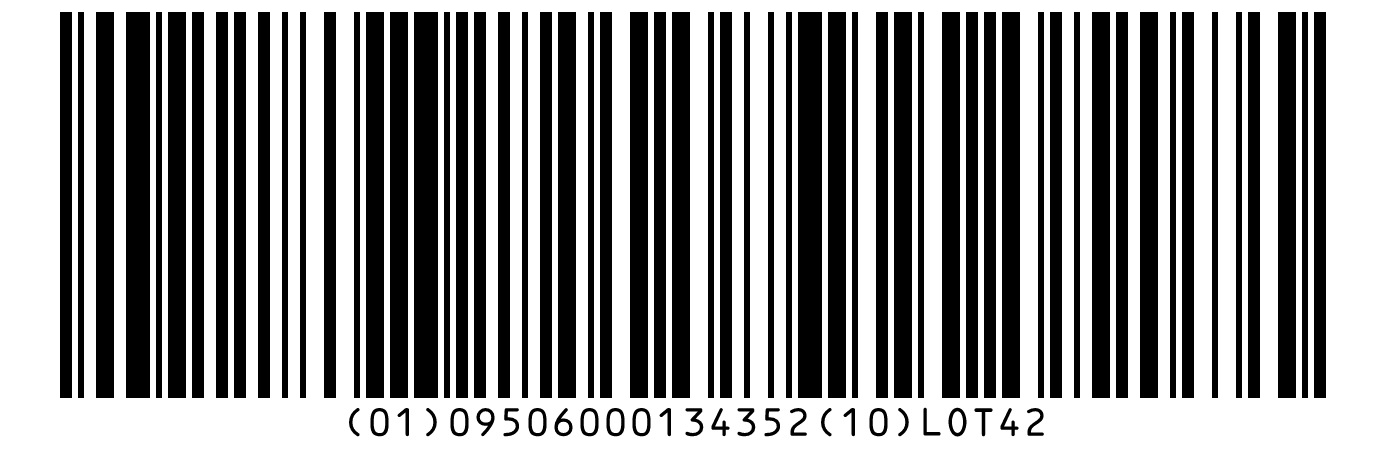
GS1-128: GS1 element strings with Application Identifiers, such as (01) for the GTIN and (10) for the batch.
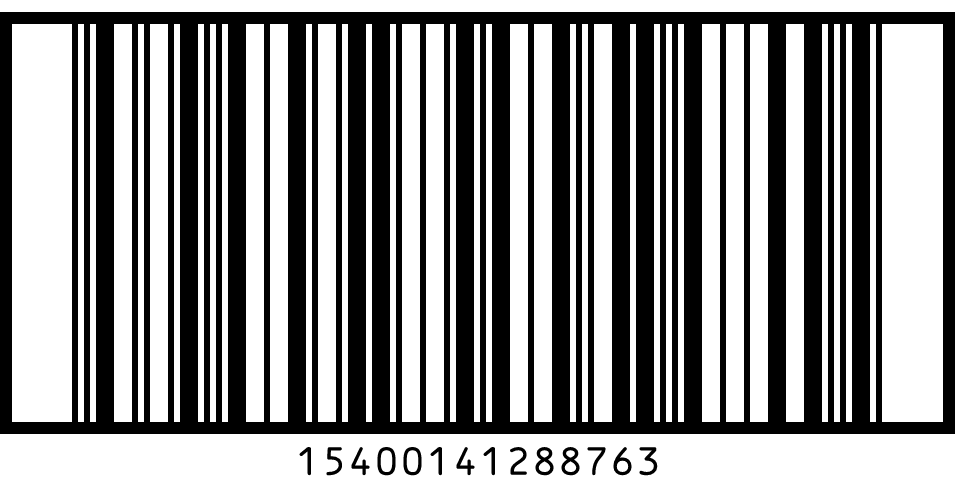
ITF-14: 13 or 14 digits for cartons; the check digit is added.
GS1 Digital Link QR: a GS1 Digital Link web address with your GTIN.
GS1 DataMatrix: GS1 element strings in a 2D code.
QR Codes and 2D Barcodes
QR Code: any text or web address.
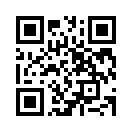
Data Matrix: any text in a small square code.

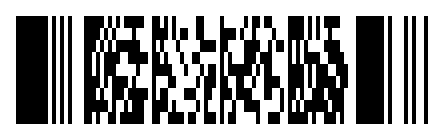
PDF417: long text in a stacked code.
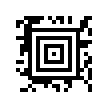
Aztec: any text, up to 3,067 capital letters and digits in the largest symbol this generator makes.
Micro QR Code: short data, up to 35 digits, in a code as small as 11 × 11 modules.

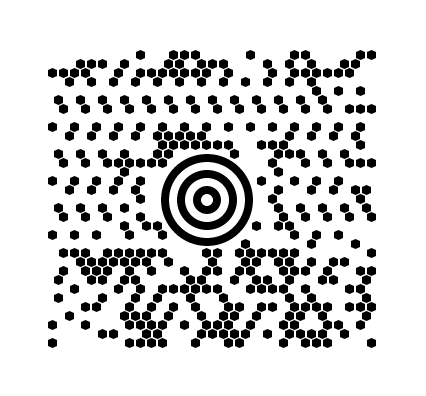
MaxiCode: the fixed-size code also known as UPS Code, 24 to 27 mm wide.
Barcodes for Internal Use
Code 128: any ASCII text and Latin-1 letters, the usual choice for internal labels.
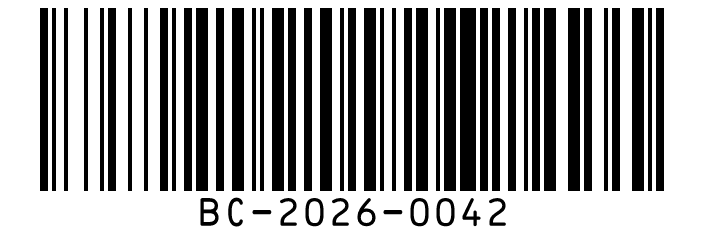
Code 39: capital letters A to Z, digits and - . $ / + % and space.
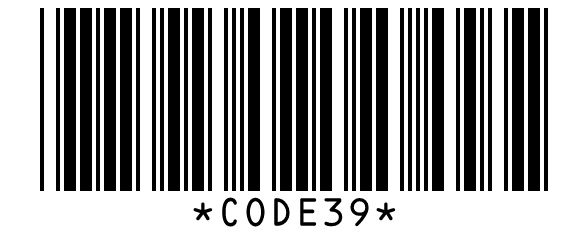
Code 39 Full ASCII: all ASCII characters, lowercase included.

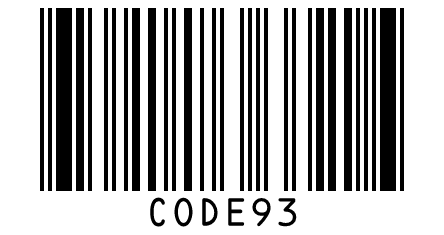
Code 93: the Code 39 characters in a shorter symbol, with two check characters.
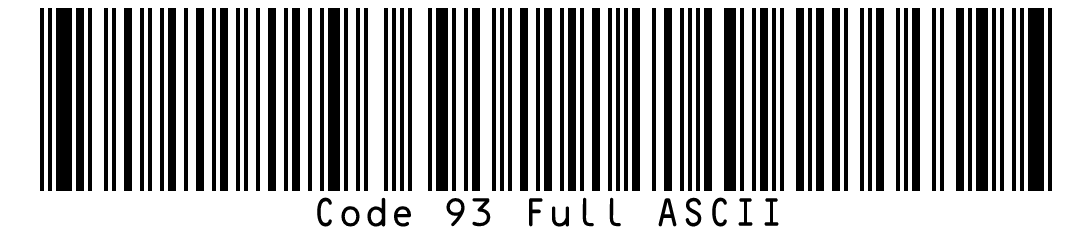
Code 93 Full ASCII: all ASCII characters.
Interleaved 2 of 5: digits only, encoded in pairs.
Print Settings for Sharp, Scannable Barcodes
Four settings decide whether a printed barcode scans: the X-dimension at your printer's DPI, the bar width reduction, the quiet zone and the human-readable text.
DPI and X-Dimension
The X-dimension is the width of the narrowest bar in millimeters. The generator rounds it to a whole number of dots at the chosen DPI, so every bar prints evenly, and shows the pixels per module and the print size. GS1 sets 0.33 mm as the standard X-dimension for UPC and EAN on retail products.
Bar Width Reduction
Ink spreads on paper and makes bars wider than they were drawn. Bar width reduction makes each bar thinner by the amount you enter, in mils or millimeters, to make up for it. Ask your printer for the right value, or leave it at zero for laser and thermal printing.
Quiet Zone
The quiet zone is the blank margin a scanner needs on each side of the code. The generator sets the minimum for each type, such as 9 modules on each side of a UPC-A and 4 modules around a QR code. Make it larger if the code is printed near other text or lines.
Human-Readable Text
Linear barcodes can show their data as text under the bars, in OCR-B by default. You can turn the text off, and for most types change its size, alignment and font. UPC, EAN, ISBN, ISSN and ISMN keep the standard digit layout in OCR-B, with the outer digits beside the bars.
Add Text, a Logo or a Border to a Barcode
Label text, a QR logo, rotation and a border are drawn into the file itself, so every format shows them the same way.
Text Above and Below the Barcode
Type a product name above the code and a price or size below it. The text is set in Helvetica or Courier at the size you choose, outside the quiet zone, and the generator warns when a line is wider than the code.
QR Code Logo, Shapes and Colors
For a QR code, choose or drop a PNG, JPEG, WebP or SVG logo of up to 2 MB, set its width from 10 to 30 percent, and pick the module and eye shapes, a gradient and an eye color. With a logo the error correction is set to H. A call-to-action frame adds a line such as Scan me under the code, and downloads unlock only after the decoder reads the design back to the exact data.
Rotation, Transparent Background and Border
Turn the barcode by 90, 180 or 270 degrees, or make the background transparent for SVG, PNG and WebP files; a JPEG keeps its background. A margin, a border and rounded corners in millimeters go around the quiet zone and count in the print size. Print a transparent barcode only on a white or very light surface, because scanners need the light quiet zone.
Check a Barcode Before You Print
The generator reads every barcode back with the decoder of the Barcode.codes scanner and can simulate a worn print, so problems show up before you print.
Read-Back With a Real Decoder
After each change the drawing is decoded, and the preview says Read back: the decoder reads this exact data when it matches. If the decoder reads nothing or different data, a warning explains it and the badge counts the warnings. All 23 types are covered.
Print Simulation
Ink spread and Weak printer blur the drawing by a fixed distance on paper, 0.09 mm or 0.13 mm with noise, and read the result again. It is an approximation, not a model of your printer, but it shows when the X-dimension is too small. Use a larger X-dimension or a bar width reduction when the simulated print does not read.
Data Inspector
The data inspector counts the characters and UTF-8 bytes and lists the character classes. It also shows the QR mode, the Code 128 code sets, the GS1 Application Identifiers with their titles, and the GS1 prefix office of a retail number with a link to the barcode lookup.
Download SVG, PNG, WebP, JPEG, PDF or EPS
SVG, PDF and EPS are vector files for print, and PNG, WebP and JPEG are images at the DPI you choose.
SVG for Print and Design
An SVG file is a vector drawing, so the bars stay sharp at any size. Its width and height are written in millimeters, so design and label programs place it at its true print size.
PDF and EPS for Print Shops
PDF and EPS files are vector drawings at the print size, with the page or bounding box cut to the code. Text is set in Helvetica, a standard font that needs no embedding, and a QR logo is embedded as an image. EPS uses PostScript Level 3 for print shops and older design programs.
PNG and JPEG With DPI Metadata
PNG and JPEG files are drawn with a whole number of pixels per bar and carry the DPI you chose, so they print at the intended size. PNG keeps the edges perfectly sharp; JPEG is for programs that accept nothing else.
WebP for Web Pages
WebP files are small and suit web pages and online shops. The WebP format has no standard field for DPI, so set the print size yourself if you print one.
Test Sheet, Size Set and Embed Code
More export options make a PDF test sheet with the code at 80, 100 and 150 percent and 100 mm and 4 in rulers, on Letter or A4. The size set saves one file per magnification, and for PNG, WebP and JPEG per DPI, in a ZIP. The embed code gives an image tag, a data URI or inline SVG for a web page.
UPC, EAN and ISBN Check Digits and Add-Ons
Retail barcodes end with a check digit that scanners use to catch misreads, and they can carry a 2- or 5-digit add-on.
Check Digits
Leave out the last digit of a UPC, EAN, ITF-14 or ISBN-13 and the generator adds the correct check digit and tells you which one it is. If you type a wrong check digit, the generator names the right one and the Fix it button corrects it.
EAN-2 and EAN-5 Add-Ons
The add-on field adds a small second barcode to the right of UPC-A, UPC-E, EAN-13, ISBN, ISSN and ISMN codes. Magazines use 2 digits for the issue number, and books use 5 digits for the price, where 52495 means US$24.95 and 90000 means no suggested price.
Getting a Real Product Number
The generator draws a barcode for the number you enter; it does not issue numbers. Product numbers for stores come from GS1, ISBNs from your national ISBN agency, which is Bowker in the United States, and ISSNs from the ISSN network.
Save, Copy and Reuse Barcode Settings
Presets, recent downloads and a settings link let you make the same barcode again without setting it up.
Presets and Recent Barcodes
Save the current type, size and style as a named preset and apply it later in the same browser; the data and the logo are not saved. The last 10 downloads are listed under Recent barcodes and open again with their data. Both stay in your browser's local storage.
Copy and Share Settings
Copy image puts a PNG on the clipboard, and Copy SVG code copies the drawing as text. Copy settings link copies a link that opens the generator with the type, data, X-dimension and DPI. Reset settings returns every option to the defaults for the chosen type.
Link Tracking for QR Code Links
When a QR code holds a web address, Link tracking adds the utm_source, utm_medium, utm_campaign, utm_term and utm_content parameters you fill in, so analytics can tell where a scan came from. A longer link makes a denser code, and the read-back checks the full link.
Frequently Asked Questions
Is This Barcode Generator Free for Commercial Use?
Yes. The terms let you use the barcodes you make for personal and commercial purposes, including on products, packaging and labels. There is no watermark and no limit on downloads.
What Happens If My Check Digit Is Wrong?
The badge shows Invalid, nothing is drawn, and the generator names the digit that the number needs. Press Fix it to correct it, or leave the check digit out and it is calculated for you.
What X-Dimension Should I Use for a UPC Barcode?
GS1 sets 0.33 mm as the standard X-dimension for UPC-A and EAN-13 on retail products and allows 80% to 200% of it. Smaller codes need a sharper printer, so test a printed copy before you use a small size.
Why Does the Generator Add Space Around the Barcode?
That white space is the quiet zone, and scanners need it to find where the code starts and ends. Removing it is the most common reason a printed barcode will not scan. You can make it larger under Quiet zone.
Can I Remove the Numbers Under the Barcode?
Yes. Untick Show text under the bars in the Human-readable text card and the digits disappear from linear barcodes. GS1 requires the digits under UPC and EAN barcodes on products, so the generator warns when you hide them there.
Which Barcode Should I Use for Inventory Labels?
Code 128 suits internal labels: it holds letters, digits and symbols and packs pairs of digits into one character, so labels stay compact. Use a QR code instead if the labels will be scanned with phones.
Can I Generate a GS1 Digital Link QR Code?
Yes. Choose GS1 Digital Link QR and enter a GS1 Digital Link address, such as https://id.gs1.org/01/ followed by your 14-digit GTIN. The generator checks the address and draws the QR code.
Can I Download a Barcode as a PDF or EPS File?
Yes. Choose PDF or EPS above the Download button. Both are vector files at the print size with text in Helvetica, so print shops and older design programs can use them without scaling.
Can I Make a Barcode With a Transparent Background?
Yes. Open Rotation and background and tick Transparent background, and SVG, PNG and WebP files are saved without a background. Print it only on a white or very light surface, because scanners need the light quiet zone around the bars.
Related Barcode Tools
- Test a printed barcode with the barcode scanner
Point your camera at a test print.
- Check a downloaded file with the barcode reader
Drop the PNG or SVG you saved.
- QR code generator with forms
Wi-Fi, contact, email, phone, SMS, WhatsApp and review QR codes.
- Print barcode labels on sheets
Many barcodes on one PDF label sheet.
- Make many barcodes at once
From a list, a spreadsheet or a sequence.
- USPS Intelligent Mail barcode generator
The 65-bar IMb for letters and flats, at USPS dimensions.